
Web Application
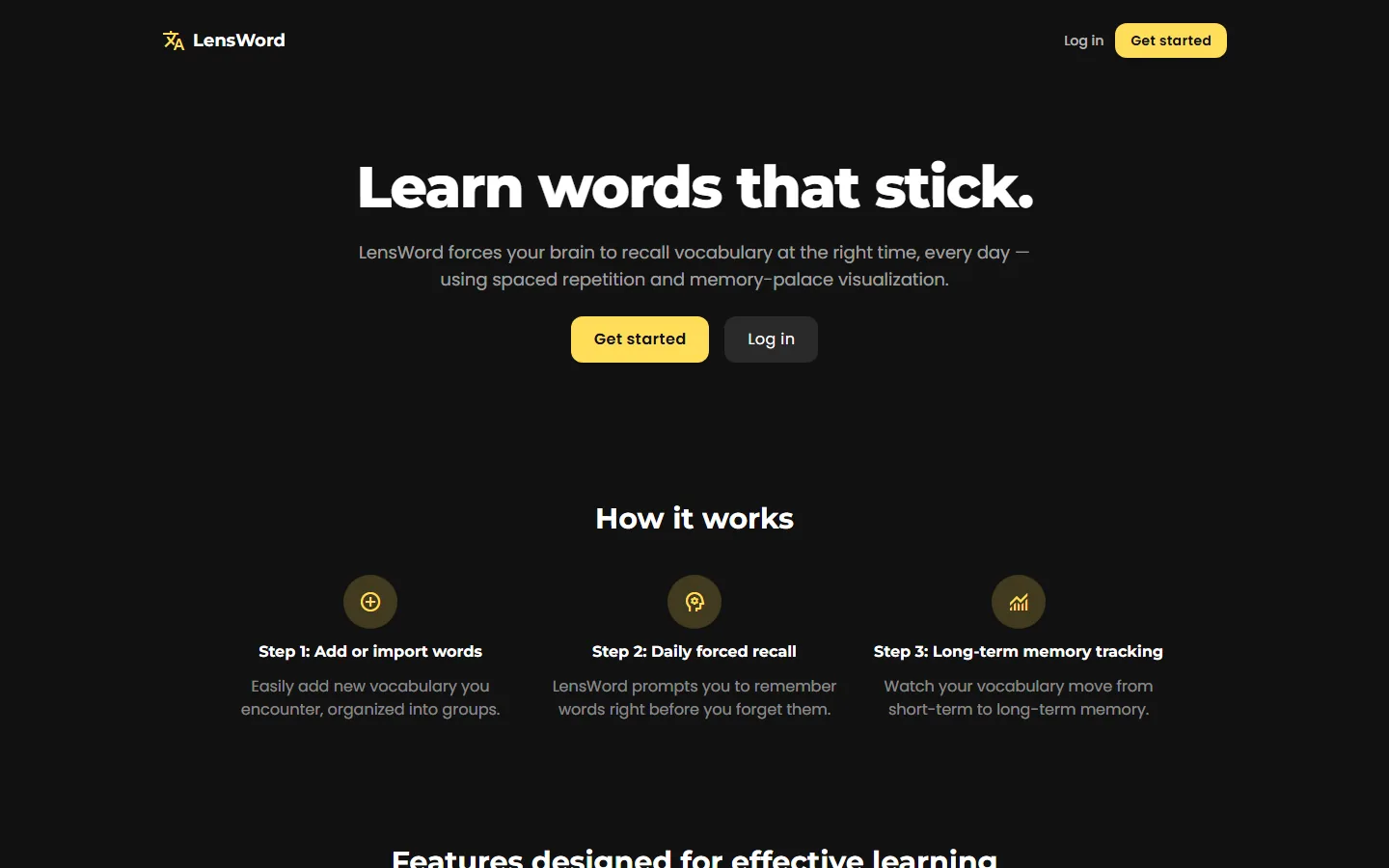
The web app (apps/frontend) is LensWord's primary, publicly usable surface — it's the most complete and CI-tested surface, and the one every screenshot in this documentation was taken from.
Access modes
| Mode | What it is | Database | Guide |
|---|---|---|---|
| Docker Compose (recommended) | Everything on one host: frontend, backend, Postgres | Postgres (bundled) | This page, below |
| Local development | Backend and frontend run directly, for changing the code itself | SQLite by default | Local development |
| Self-hosted for others | Running LensWord as a shared service | Managed Postgres | Self-Hosting & Deployment |
SQLite vs. Postgres: SQLite (the local-development default) is fine for one person developing on the code, with no setup — the file lives at apps/backend/data/lensword.db. Postgres is required for the Docker Compose stack and for self-hosting: it's what CI runs the full test suite against (backend-postgres job), and it's the only path that's been exercised for concurrent access and migrations under alembic upgrade head in a multi-request environment. Don't run SQLite for anything other than solo local development.
Quick start
cp .env.example .env
# set SECRET_KEY and POSTGRES_PASSWORD — see .env.example's comments
docker compose up --build- Frontend:
http://localhost:18421 - Backend API:
http://localhost:18420(/docsfor interactive API docs)
This is the same command covered in Getting Started, verified end to end by registering, completing onboarding, creating a group, adding words, running a review session, and placing a word in a Mind Palace room.
First-success checklist
You've actually succeeded when you can check off all of these — not just "the containers are running":
- [ ]
http://localhost:18421loads the landing page. - [ ] You can register an account (or log in, if
FIRST_ADMIN_EMAIL/FIRST_ADMIN_PASSWORDcreated one for you) and reach the dashboard. - [ ] You've created at least one vocabulary group.
- [ ] You've added at least one word with a translation.
- [ ] You've completed one forced-recall review question and seen the result (correct or incorrect) recorded.
That last step is the real outcome LensWord exists for — a server that merely boots doesn't demonstrate spaced repetition works.
Core learner workflows
Each of these was walked through end to end against a real running instance (docker compose up --build, registered as a fresh account) to produce the screenshot and confirm the described behavior — not written from the UI code alone.
Create an account and sign in
Registration asks for a username, email, and password, then walks you through a 4-step onboarding flow: target language(s), your preferred Forced Recall intensity (Gentle/Balanced/Intense), and creating your first group. Login afterward only needs email and password.
Create a vocabulary group
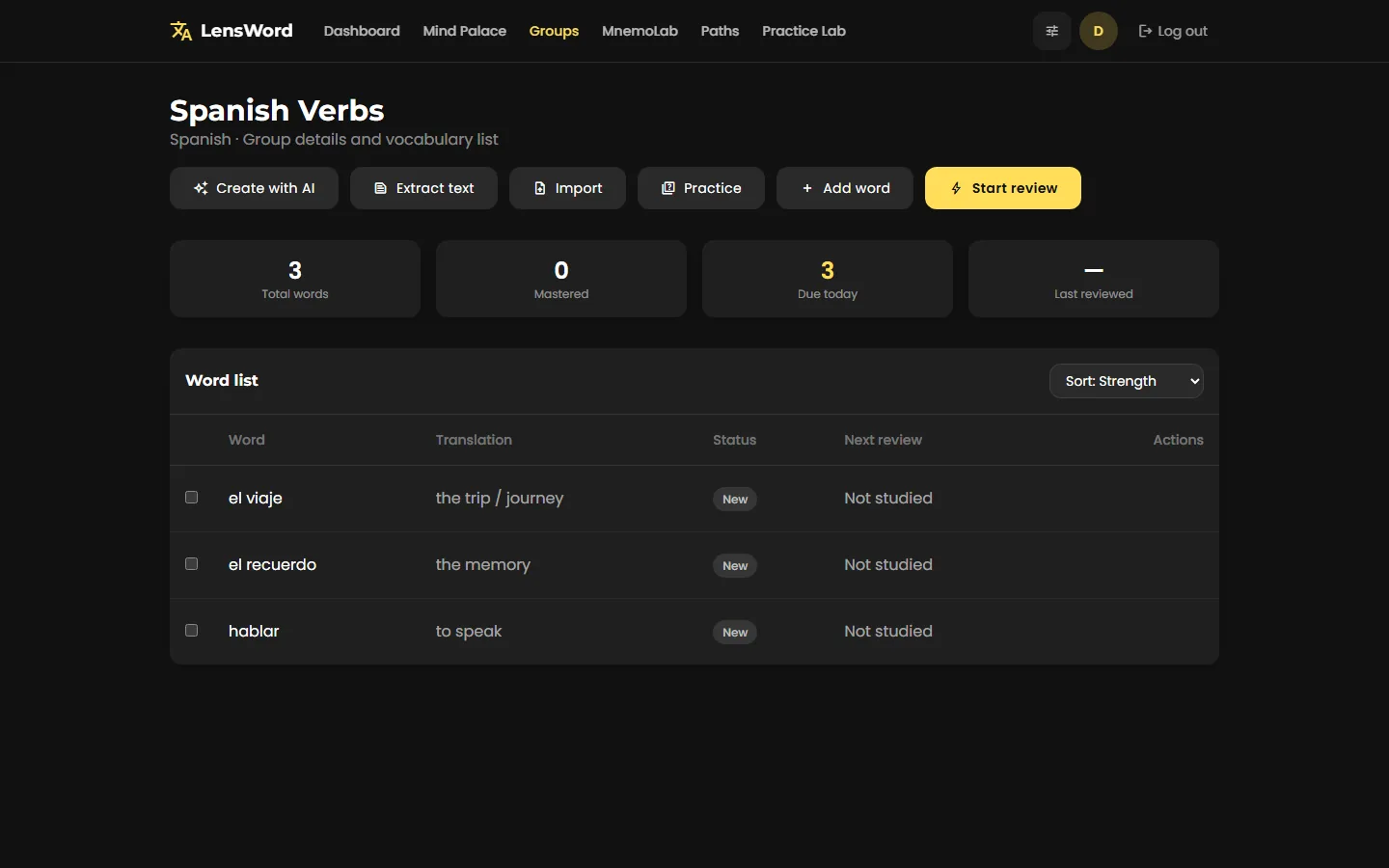
Groups (Groups in the top nav) are named decks tied to one target language — "Spanish Verbs," "Business English." Creating one asks for a name and a target language; nothing else is required before you can start adding words.
The Edit button on a group card changes both its name and its target language after the fact, so a group created against the wrong language doesn't have to be deleted and rebuilt. Words already in the group keep the language they were added with — a word card records which language that word is in, and that stays true however the group is relabelled. The editor states this before you save when the group already holds words.
Add or import words
From a group page, Add word opens a form for the term, its translation(s), an example sentence, an optional personal mnemonic, and a category. Words can also be added via Extract text (pull candidate vocabulary out of pasted text) or Import, and Create with AI offers AI-assisted word creation when a provider is configured (see Local AI / Ollama).
Enrich and verify a word card
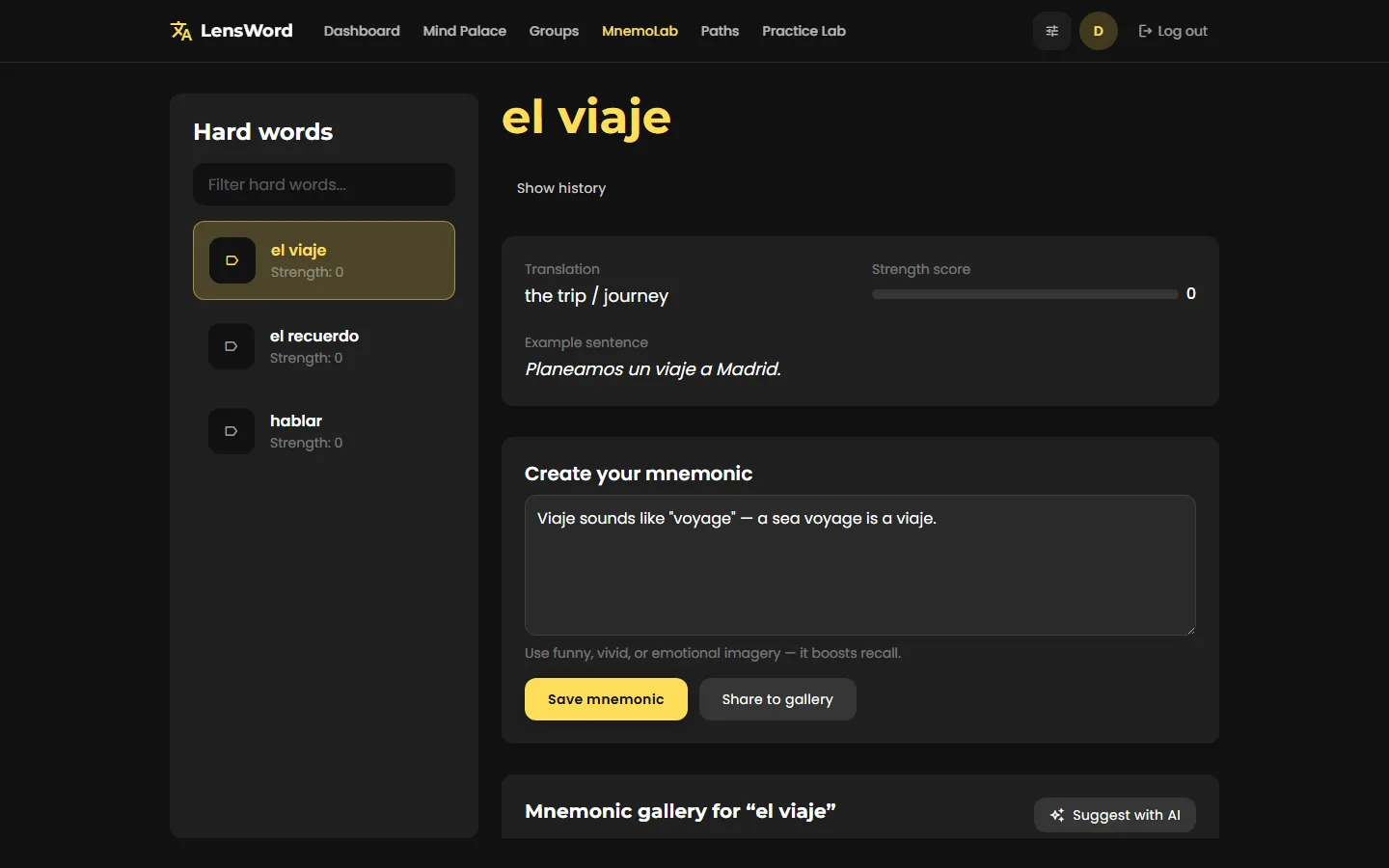
Open a word from MnemoLab (not just the group's word list) to see its full card: translation, example sentence, a strength score, and a mnemonic editor. Suggest with AI fills the mnemonic field automatically when a local AI provider is configured; without one, the field is just a plain text box you write into yourself. A mnemonic gallery below the editor is where community-style mnemonics for a word are meant to surface (see Architecture § MnemoLab is per-word, not cross-user-global for the current scope of that feature).
Run a review session
Start review session on the dashboard, or Start review on a group page, begins a forced-recall session: LensWord shows the word and you type the translation, rather than picking from options — the whole point of forced recall over passive recognition.

Generated from 4 real, automated frames (question → typed answer → "Correct!" → next word) — see scripts/capture-demo-media.mjs and scripts/assemble-demo-animation.py to regenerate it yourself; both scripts are documented inline. Static fallback: 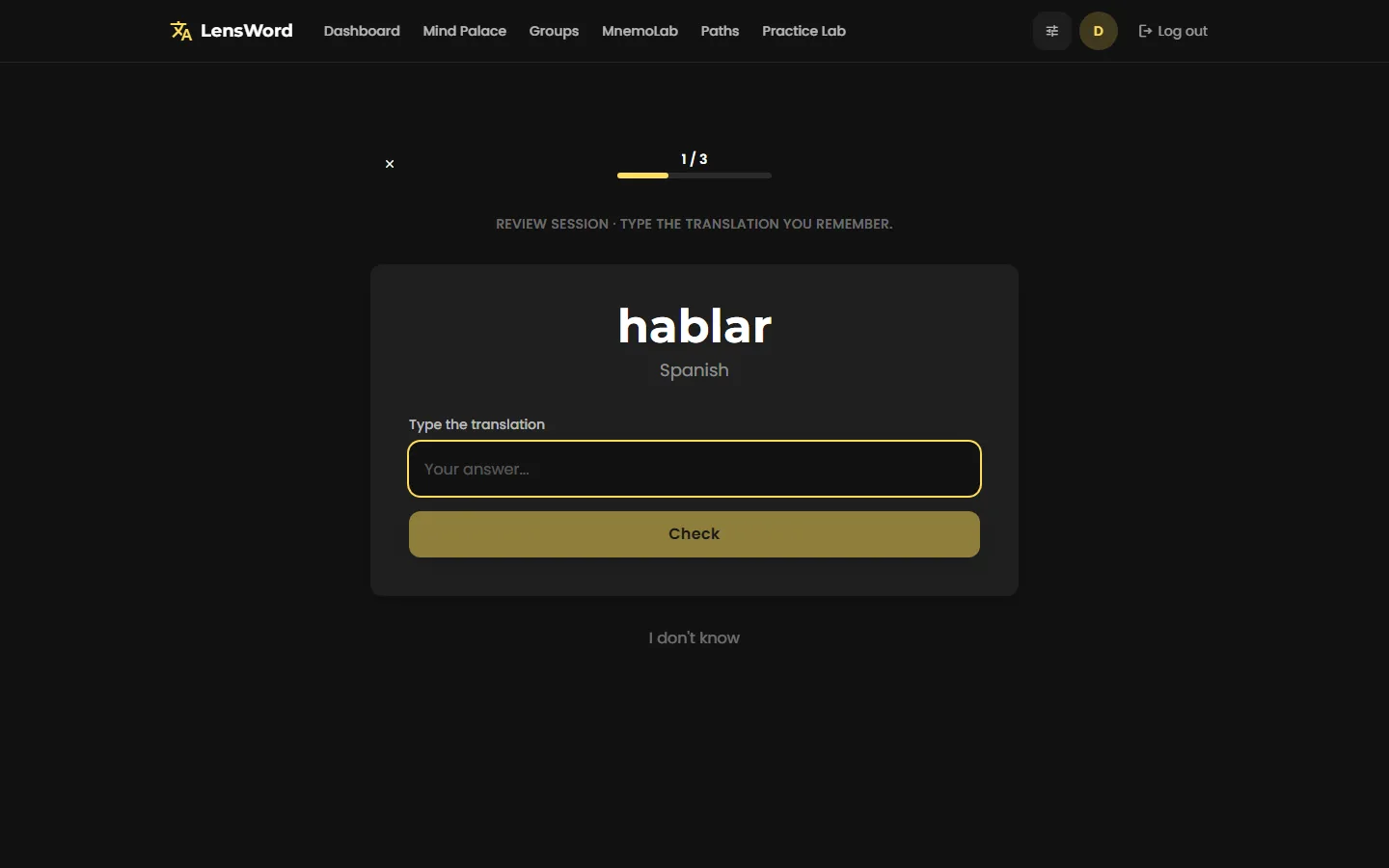
A speaker button beside the word reads it aloud in the language the word is stored in, using your browser's own speech engine — so which voices are available, and how natural they sound, depends on your device and operating system rather than on LensWord. When playback isn't possible (no speech support in the browser, no installed voice for that language, or a word filed under the "Other" language, which carries no locale to speak it with) the button stays visible but disabled and states the reason, rather than looking live and producing silence.
Five presentation modes share this same session mechanic (mode query param on /review), not five separate implementations — see Architecture § One ReviewSessionPage, not five:
| Mode | URL | Behavior |
|---|---|---|
| Standard | /review?mode=standard | Type the translation, no time pressure |
| Focus | /review?mode=focus | Same, with a visible countdown timer |
| Walking | /review?mode=walking | Multiple-choice, tuned for one-handed use |
| Night wind-down | /review?mode=night | Multiple-choice, a short session (3 words) before sleep |
| Study break | /review?mode=break | Multiple-choice, a very short session (2 words) between study blocks |
Flashcards (/flashcards) practises the same due words a different way: tap a card to flip it, then mark it known or not known by swiping, pressing the buttons, or using the left/right arrow keys. The controls stay disabled until the card is flipped, so a word is never marked known while its answer is still hidden. It submits through the same review-session endpoints as every other mode — the schedule doesn't know or care which interaction you used — and the multiple-choice and typed modes above are unaffected.
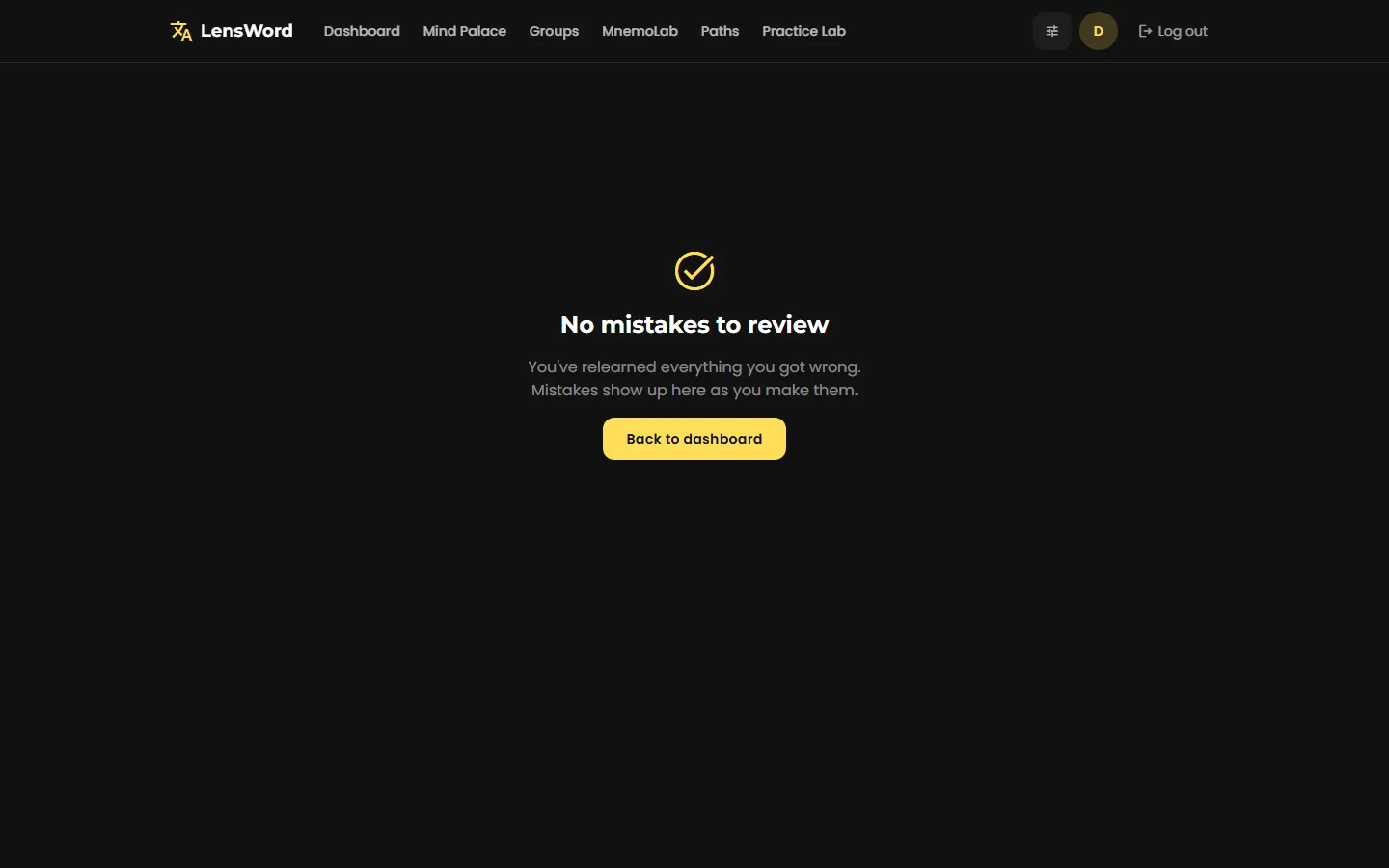
Review my mistakes (/review?mode=mistakes) re-tests words you got wrong. If you haven't missed anything yet, it says so plainly rather than showing an empty, ambiguous screen:
Use Mind Palace rooms and spatial anchors
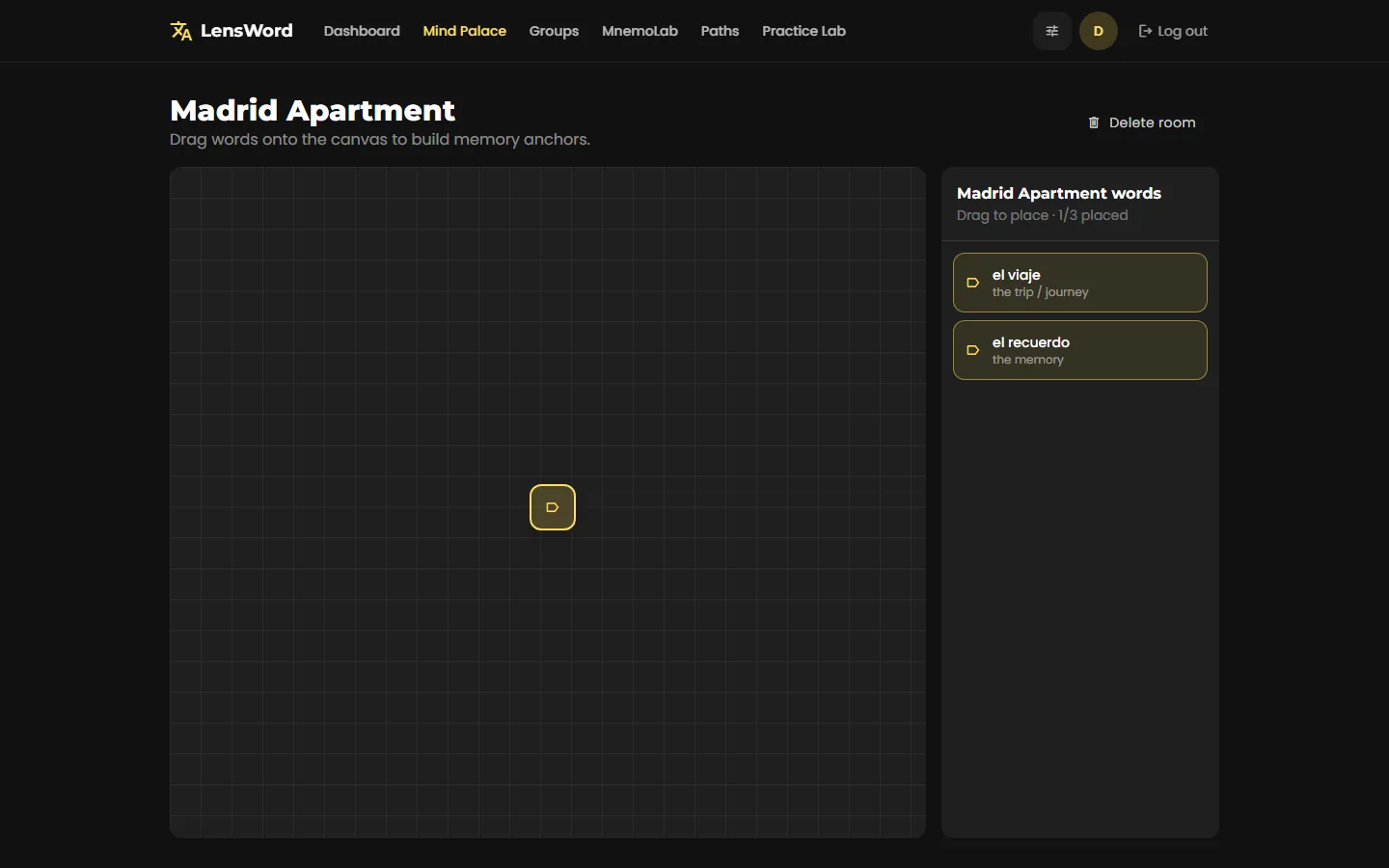
Mind Palace in the top nav lists your memory rooms. Creating one asks for a name, which group's words it draws from, and an icon.
Inside a room, words are placed as spatial anchors (the method-of-loci technique). The default view is a 3D room you can orbit and zoom: pick a word from the sidebar, then click the floor to place it, and click a marker to remove it. A Flat view button switches to the original drag-and-drop board, and browsers without WebGL get that board automatically with a message explaining why the 3D view isn't offered.
Both views read and write the same placement, so a word placed in one appears in the same spot in the other, and rooms built before the 3D view existed keep their layout.
Use Practice Lab workflows
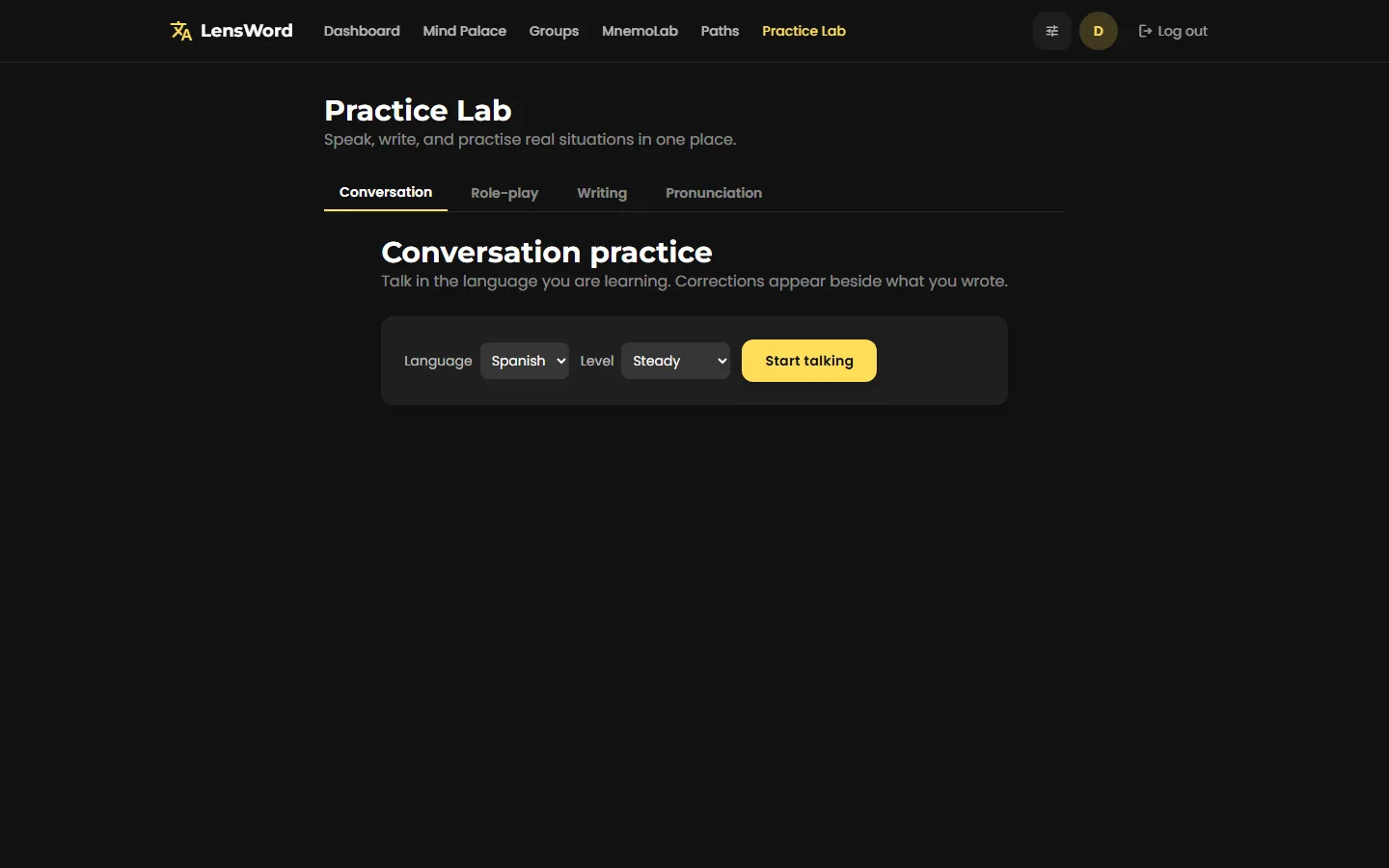
Practice Lab (/lab) covers four practice modes beyond flashcard review: Conversation, Role-play, Writing, and Pronunciation. Conversation practice lets you pick a difficulty (Gentle / Steady / Stretch me) and start a free-form chat in your target language; corrections appear alongside what you write. These features were confirmed to load and accept input; a full conversation turn was not carried to completion in this verification pass since it depends on the same opt-in AI provider as MnemoLab (see Local AI / Ollama) — treat the UI as reachable and functional, the underlying AI response quality as covered by docs/reference/ai-model-verification.md rather than this page.
Chat with the assistant
Assistant (/assistant) is a chat surface for asking about anything you are learning, rather than working through a drill. It is off unless the AI companion is enabled for your account; when it is off the page says so instead of failing, and no chat is offered.
Each conversation is stored as a durable companion session, which is the same record an external companion (for example a connected MCP client) reads and writes — so a conversation started in the app remains readable and exportable through those surfaces rather than being trapped in the web UI. Replies come from the same opt-in AI provider as MnemoLab and Conversation practice (see Local AI / Ollama): with no provider configured the assistant says it is unavailable and keeps your message on screen rather than discarding it. Replies arrive complete rather than streaming in word by word.
This surface is covered by automated tests against a stubbed AI provider; a full conversation turn against a live model was not carried to completion in this verification pass, for the same reason as Practice Lab above.
Use personalized learning paths
Paths (/paths) generates a study plan from a goal you describe in plain language ("order food in a restaurant," "read technical documentation") for a chosen target language. Progress against a generated path is counted from the words you actually have in your groups, not a generic curriculum.
Configure reminders and understand delivery limitations
Settings covers your daily practice target, Forced Recall Engine intensity, review scheduler (SM-2 classic, the default, or FSRS adaptive), per-mode toggles (Idle time, Walking mode, Study breaks, Night wind-down, the graduated same-day acquisition loop), notification channels (mobile push, email summary, desktop browser, in-app popups), and the time zone reminder times are read against.
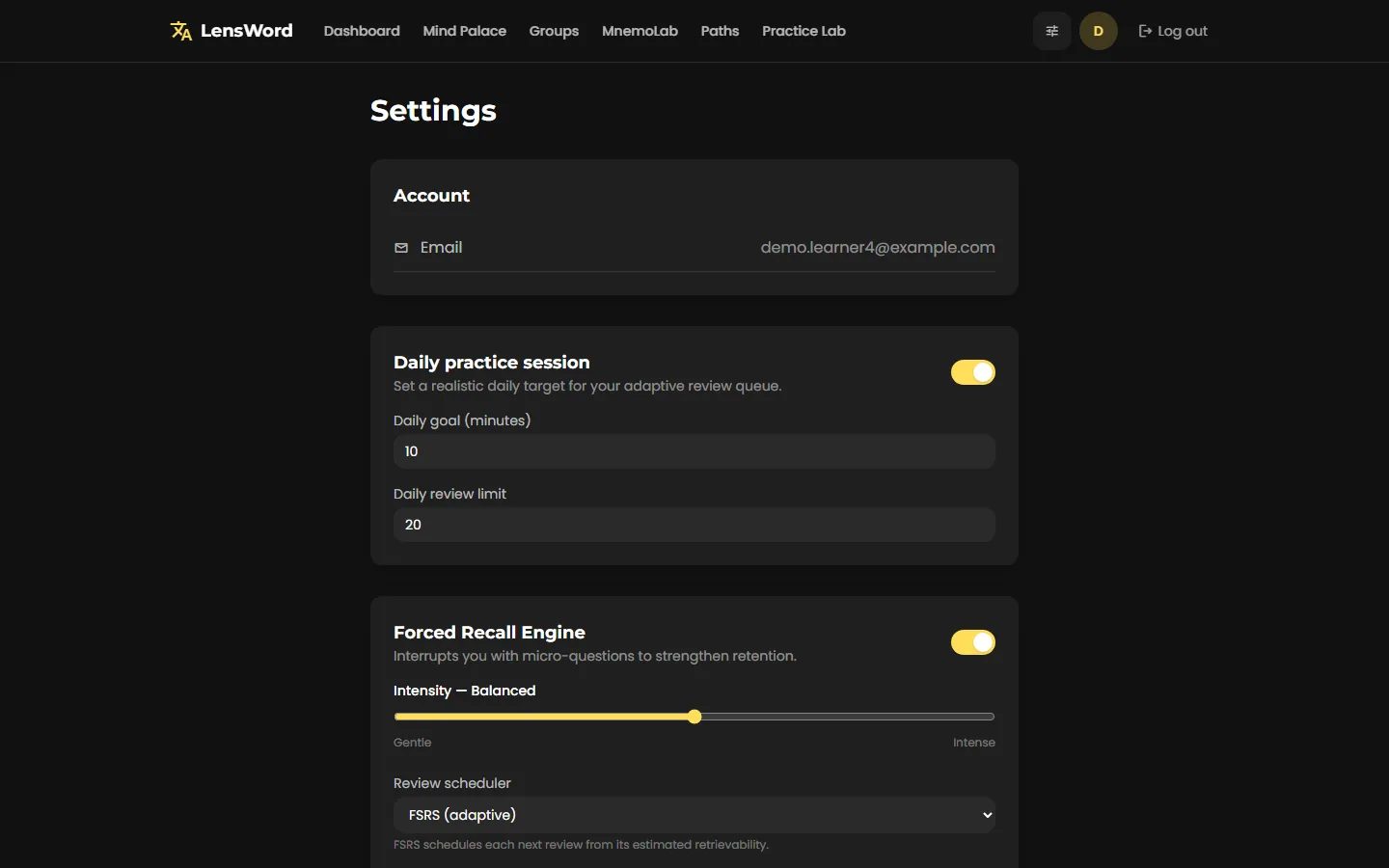
Read the in-app warning, not just this page: the Notifications section states directly, in the product itself, that these preferences are saved but push/email/desktop delivery isn't wired to a real notification provider in this build. Only the desktop app's native-toast channel has a real (if unverified — see Desktop) delivery path today.
Next steps
- Running this for other people, not just yourself? See Self-Hosting & Deployment.
- Developing on the code directly? See Local development.
- Something not working? See Troubleshooting.